

Revit plugin
Model Inspector
See what your Revit model is hiding.
A dockable inspector that browses every element by category, family and type, groups model warnings, and reports seven common model faults that Revit does not raise on its own.
Overview
A pane that sits beside the Project Browser.
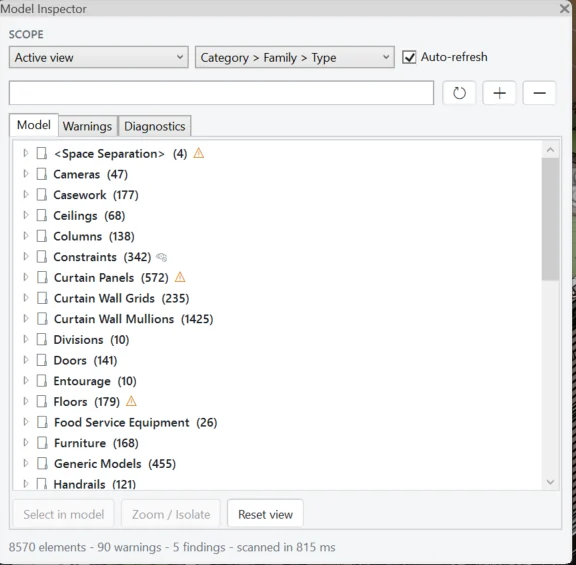
Model Inspector scans the active view, the current selection, the entire model, imported CAD, or a level-based breakdown, and presents the result as a navigable tree with element counts at every node. Selection is synchronised both ways: the tree drives Revit, and Revit drives the tree.
Beyond browsing, the pane carries two further tabs. Warnings collects the model's warnings, groups them by type with counts, and exports the list as a self-contained HTML report. Diagnostics runs seven rules against the scanned model and reports findings ranked by severity, each with the affected elements selectable in one click.
Capabilities
What it does
Hierarchical model tree
Browse category, family, type and instance, or regroup by level or workset without rescanning. Every node shows its element count; every instance shows its name, level and element ID.
Five scan scopes
Switch between current selection, active view, entire model, imported CAD and levels from a single dropdown. A search box filters by name, type, family, category or element ID.
Two-way selection
Clicking a tree node selects those elements in Revit. Selecting an element in Revit expands the tree down to it, so the pane always shows where you are.
Zoom and isolate
Zoom to the selected node's elements, isolate them temporarily in the active view, and restore with Reset view. Isolation uses Revit's own temporary view modes.
Grouped warnings manager
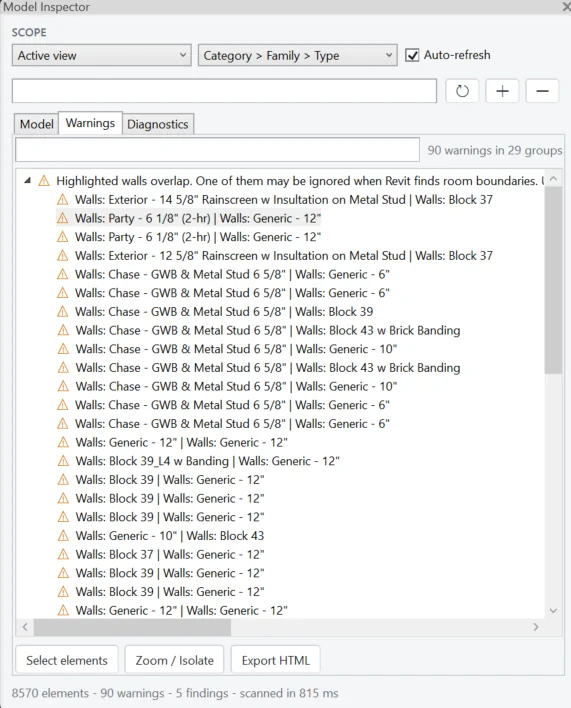
Reads the document's warnings, groups them by type with a live count, and shows the elements involved. Warnings can be selected, zoomed to, or exported to HTML.
Debounced auto-refresh
With auto-refresh enabled the pane re-scans shortly after the model changes rather than on every edit, so results stay current without interrupting modelling.
Diagnostics
The seven checks it runs
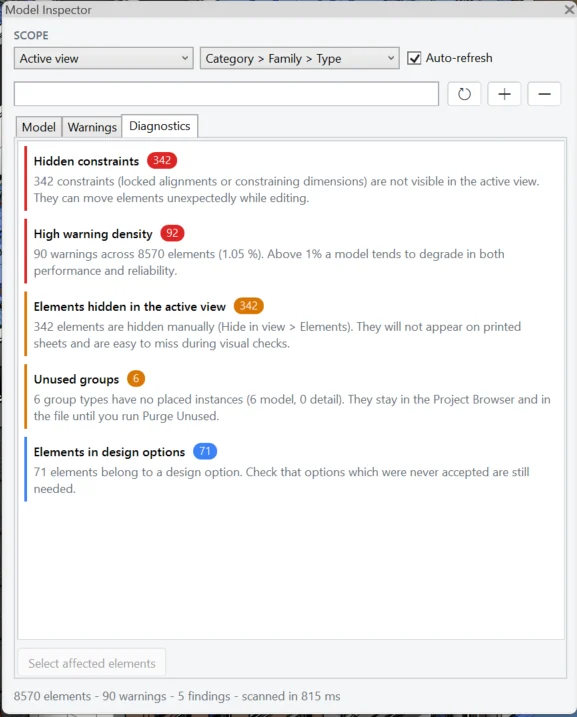
Evaluated after every scan and sorted by severity, then by count. Each finding names the number of elements involved and can select them in the model.
Hidden constraintscritical
Counts locked alignments and constraining dimensions that exist in the document but are not visible in the active view. These are the usual reason elements move unexpectedly while someone edits nearby geometry — nobody can see what is holding them.
Exploded CAD geometrycritical
Counts lines and text notes whose graphic style points to a subcategory under Imported Objects — the signature Revit leaves when a DWG is exploded. Every one is a full Revit element, and a common cause of bloated, slow files.
High warning densitycritical
Compares the number of model warnings against the number of elements scanned, and reports when the ratio reaches 1%. Above that, models tend to degrade in both performance and reliability.
Elements hidden in the active viewwarning
Counts elements hidden manually. Hidden elements will not appear on printed sheets and are easy to miss during a visual check, so a drawing can be issued incomplete without anyone noticing.
Imported CAD, not linkedwarning
Counts CAD imports embedded in the file, and reports how many CAD links exist alongside them. Embedded imports increase file size and pull the CAD's layers and line styles into the model, where they stay.
Unused groupswarning
Counts group types with no placed instances, split into model and detail groups. They remain in the Project Browser and in the file until Purge Unused is run, and the finding makes them selectable.
Elements in design optionsinfo
Counts elements belonging to a design option, as a prompt to confirm that options never accepted are still wanted. Useful before issue, when forgotten options quietly travel with the model.
How it works
Open it, scan, act.
Open the panel
Launch Model Inspector from the ribbon. It opens as a dockable pane beside the Project Browser and remembers its position between sessions.
Choose a scope and a grouping
Pick a scan scope and a grouping of category, level or workset. The status bar reports elements scanned, warnings, findings and the scan time.
Read the three tabs
Model gives the tree with warning markers on affected branches. Warnings gives the list grouped by type. Diagnostics gives the findings with severity and count.
Act on what you find
Select in model, zoom or isolate to inspect in context, reset the view, select the elements behind a finding, or export the warning list as HTML.
Benefits
What changes day to day
- Locate any element by category, family, type or ID in seconds.
- See warnings as a dozen grouped problems, not thousands of rows.
- Catch hidden constraints before they move geometry unexpectedly.
- Quantify the exploded CAD residue that is slowing the file down.
- Hand a model's warning state to a colleague as one HTML file.
- Inspect without leaving Revit — no export, no second application.
Specification
The facts
- Revit versions
- 2024 · 2025 · 2026 · 2027
- Operating system
- Windows
- How it runs
- A non-modal dockable pane, docked alongside the Project Browser. Its position persists between sessions.
- Scan scopes
- Current selection · Active view · Entire model · Imported CAD · Levels
- Groupings
- Category, level or workset, each down to type and instance
- Search
- Matches element name, type name, family name, category name or exact element ID
- Diagnostic rules
- 7, ordered by severity then by element count
- Export
- HTML — a single self-contained file containing the grouped warning list
- Model changes
- Read-only, apart from two named and undoable transactions for isolate and reset view
- Auto-refresh
- On by default; re-scans after a short delay when the document changes
Pricing
Model Inspector licences
Annual, per named seat, two devices each. Every plan is the complete product — the tiers differ only in how many people may use it.
All prices exclude VAT. Any tax that applies where you are is calculated and shown at checkout.
| Plan | Seats | Per year, excl. VAT |
|---|---|---|
| Individual | 1 user | £245 |
| Multi User | 3 users | £645 |
| Business | 10 users | £1,795 |
| Corporate | 25 users | £3,875 |
Download
Get the installer
Version 1.0.4, signed, free to download. One installer covers Revit 2024, 2025, 2026 and 2027 — it detects what you have and ticks those versions for you.
You will need a licence key to use it, and a 14-day trial key is free. System requirements · Ask for a trial key
Model Inspector
Revit 2024 · 2025 · 2026 · 2027 — Windows
1.0.4·2.8 MB·MSI·signed
Questions
Frequently asked
Does it fix the problems it finds?
No. It is read-only apart from temporarily isolating elements and resetting the view. It does not delete unused groups, run Purge Unused, resolve warnings or correct anything. It reports, and it selects — the decision stays with you.
What exactly does the HTML export contain?
The grouped warning list: document title, timestamp, total warning count and group count, then one table per warning type ordered by frequency, with the elements involved and their IDs. The Diagnostics findings are not included in the export — they live in the pane.
Can I add my own checks?
Not at present. The seven rules are fixed, and there is no rule-authoring interface. If there is a check your office needs, tell us — that is how the list grows.
Does it inspect linked Revit models?
No. The scan runs on the active document. CAD links are counted as a number within the Imported CAD finding, but the contents of Revit links are not traversed.
Is it an ISO 19650 or naming-convention audit?
No. It checks the seven model-health conditions listed above. It does not assess naming conventions, parameter completeness or compliance with any standard.
How fast is it?
That depends entirely on the model. For reference, the model shown in the screenshots — 8,570 elements — scanned in 815 milliseconds. We would rather give you one real figure than a headline number.
Try Model Inspector for 14 days.
Full functionality, no features disabled. Tell us your Revit version and we will set it up.